
Invoice Reminders
Invoice Reminders system automatically emails the invoice payer with a reminder to pay an overdue invoice.
If you are using The BOS Automatic Billing then the same system will also optionally email an invoice when it is first created (without the 'this is overdue' message!)
There are a few components that make this system work
Invoice Delivery Rules: Filters/Criteria
You can create one or more rules. These define which types of invoices we are sending reminders for. Criteria include: Org Node, Private Payer (no invoice contact), and Payer Categories for inclusion or exclusion. Rules can also be disabled.
Invoice delivery rules are ordered and you can rearrange the order from the settings screen. An invoice belongs to the first matching rule found when we are sending the reminder.
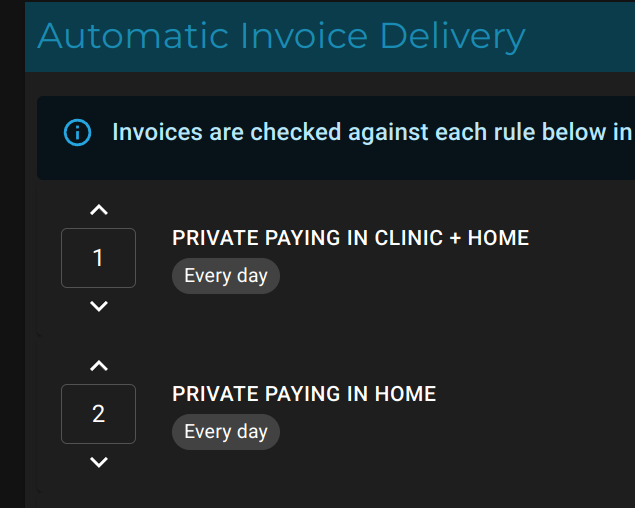
In this example: All private paying for both clinic and home will be matched to rule 1. This means that no invoices will ever match rule 2. If you were to swap the order of the rules then home visits would be matched to the home rule while clinic invoices would match to clinic+home rule.
Invoice Delivery Rules Limits
- Maximum Reminders to send per invoice: If an invoice has already had this many reminders sent then no more reminders will be sent for this specific invoice.
EG: Set a schedule for 7-30 days overdue to send a reminder every day with a maximum of 2 would result in a reminder being sent on the 7th and 8th day only. - Delivery Cooldown (days): The BOS won't send a reminder for any specific invoice if there has already been a reminder sent for this invoice.
EG: Set a schedule for 7-30 days overdue to send a reminder every day with 7 day cooldown. On the 7th day a reminder will be sent, and on day 8-13 the cooldown for that invoice will be in effect so the next reminder will be sent at 14 days overdue.
Schedules, Timing and Templates
An Invoice Delivery Rule can have multiple schedules attached to it. For example you could have a "Daily send individual emails for invoices exactly 7 days overdue" schedule and a "Last work day of month summary of all invoices more than 30 days overdue".
There is also one "special" schedule: Invoice Created Via The BOS.
This is triggered when the invoice is first created by The BOS as part of the Automatic Billing system. Although the invoice isn't overdue we are basically doing the same thing: emailing an invoice to the appropriate payer, so the option lives here.
Schedule ('when')
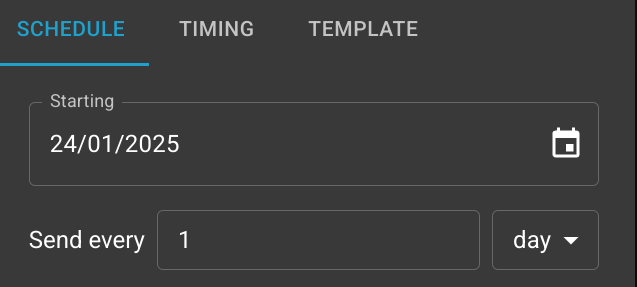
The schedule defines when we do the "check for overdue invoices and send the nag".
The most common option is probably 'Daily' but there are a range of options available.
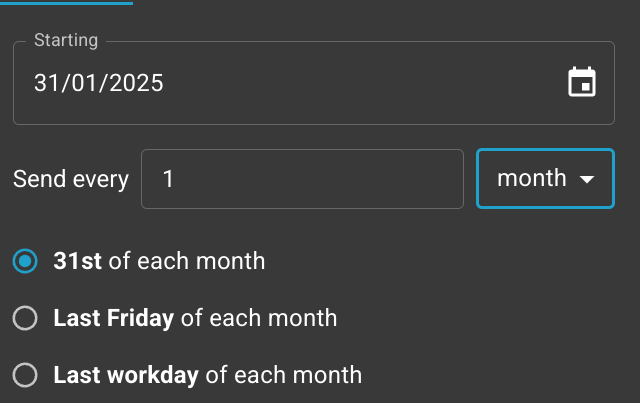
If you select monthly then The BOS will make some intelligent 'guesses' about the exact timing you want (pictured below)
Timing ('what')
Timing defines exactly what invoice date ranges will be included.
For example, if the schedule was "every day" then the below timing would be interpreted as "Each day, check for any invoices between 7 and 14 days old and send a reminder if we haven't already sent one in the last week. Make sure we don't nag about the same invoice more than twice"

Template ('how')
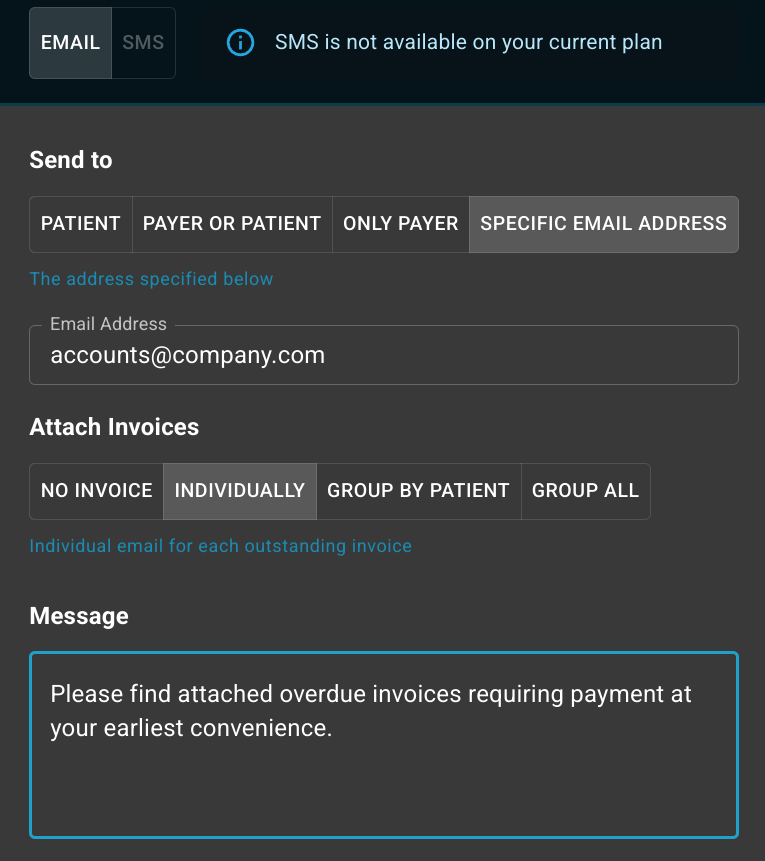
For all the matching invoices, how exactly are we sending reminders. Email and SMS are supported, most users choose Email as it doesn't incur per-message fees.
You can include a message and choose who to send the email to:
- Payer if there is one, otherwise the patient
- Always send to the patient
- Send to the payer (or not at all if there isn't a payer)
- Specific Address (EG: emailing yourself to be reminded of overdue invoices, or a specific debt chasing entity)
You can also choose how to attach the invoices:
- No invoice attachments (typically used with SMS)
- Individually: each overdue invoice is sent as it's own email. If a payer has 3 overdue invoices then 3 emails are sent
- Grouped by Patient: an email is sent for each payer/patient combo. If a payer has two clients with total of 8 overdue invoices then two emails will be sent.
- Group All: One email per payer which includes all invoices for all patients who have overdue invoices
Testing / Rollout Recommendations
This is one of the few BOS subsystems that directly communicates with your patients and payers so it's best to do a staged rollout to make sure everything is configured correctly.
Suggested rollout procedure:
- Start incredibly small: perhaps "exactly 7 days overdue for one location only" with it sending to a specific email address (yours!)
- Wait a day, check that the expected output happened (IE: appropriate amount of emails to your inbox)
- Configure the rule to email the intended recipients (payers or patients)
- Slowly 'widen the net' to more locations or date ranges.
Considerations:
- Keep date ranges reasonable EG: 0-90 days as you may have 10 year old unpaid invoices that will be nagged about if you allow huge date ranges.
- Consider if you have any invoices that are expected to not be paid (EG: huge payment terms), if so, create a rule to match those with no schedules.
- Incorrect Contact Details: patients or payers without email addresses will obviously not receive emails
BCC Invoice Reminder Emails
ThereThe isBCC aInvoice Reminder Emails tenant setting for BCC all invoice reminders which allows you to add a BCC forrecipient to every invoice reminder thatemail sent from TheBOS.
This feature is sent. This is typicallycommonly used inalongside conjunctionan with aemail rule in that usersyour mailbox to automatically move thethese emails tointo a certaindedicated folderfolder. soThis lets you can 'stockpile' the“stockpile” reminder emails so that they can be easily forwarded back to clients for anyone who "didn'claim they didn’t getreceive the email".original
While The BOS does keep track oftracks every email it sends, but it doesn'tdoes savenot store the original email attachments. So ifIf you justonly wantneed to seeconfirmation that reminder emails are gettingbeing sent you don't needsent, this feature,feature butisn’t required. However, if you want tothe be ableability to forward the wholefull emailoriginal (email, including attachments)attachments, at a later datedate, thenenabling thisBCC Invoice Reminder Emails is the waybest to do it. solution.