Targets
The targets system is a part of Mega Report and Practitioner report that allow you to set targets for any cell in the report. Values are automatically synced between Mega Report and Practitioner Report.
It doesn't need to be a 'target'...
These values do not need to actually be targets, they could be: Target, Budget, Forecast, Plan, Quota, KPI, Breakeven, Floor, Baseline, Best or Worst Case, Threshold, Capacity Limit, Compliance Requirement or any other comparison you want to make with numbers that are on the report.
How Targets Work
Target Sets
The main component is a TargetSet. This represents a "grouping" of numbers. For example the CFO might have the 2026 Budget as a TargetSet that only they and the CEO can see. Then this data can be entered for as many rows as you want. Each TargetSet has the following properties:
- TargetSet name (try to choose something that explains what it is more than just 'targets')
- TargetSet view permissions (who can see these targets)
- TargetSet edit permissions (who can change target values)
Click the target icon to start editing Target Sets. On a daily basis you will generally be comparing to targets but not editing them.
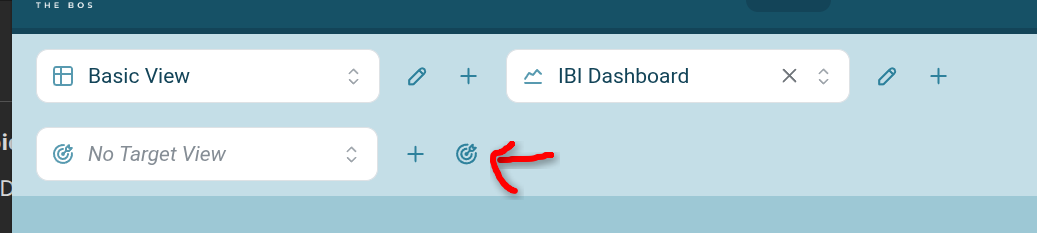
From here you can choose an existing Target Set to edit it, or create a new Target Set.
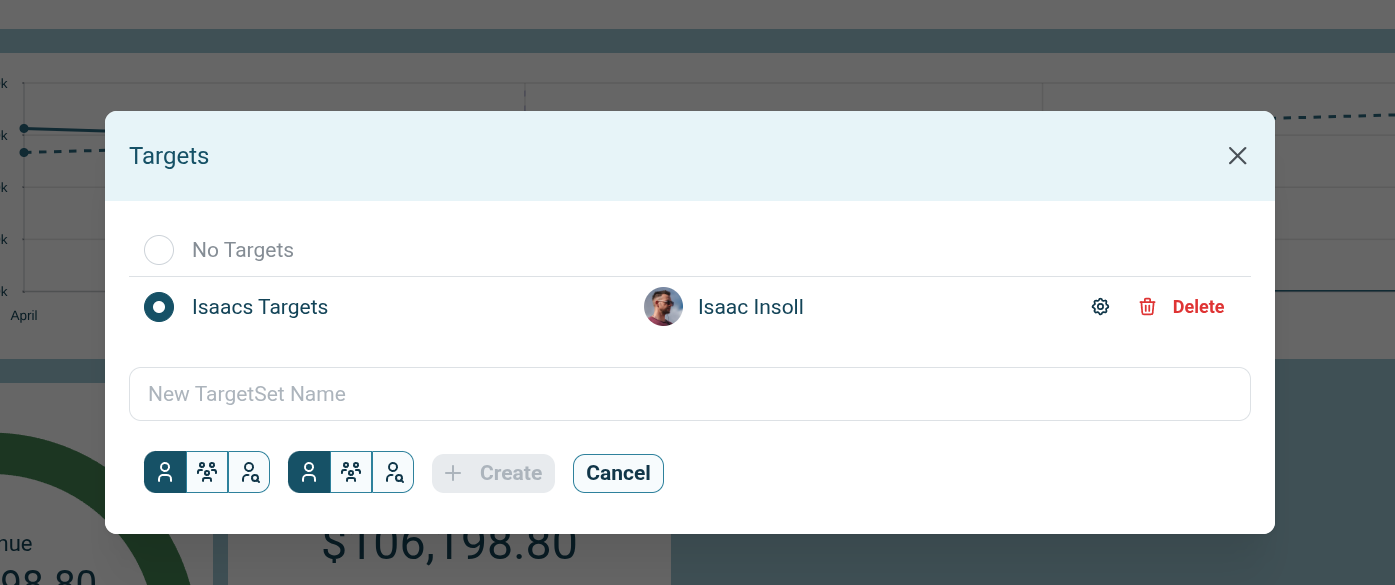
If you aren't doing something hugely complicated then it's possible you might just have one TargetSet for the whole business.
Target Values
A target value is a number entered for a particular Mega Report cell for a Target Set. For example "whole company revenue may 2026" is an actual number on mega report reported live, and if you make one TargetSet (EG: "Isaacs Targets") then you can set a target for that value. You can edit that number at anytime.
If you wanted two numbers to compare that exact revenue to (EG: 'minimum for company to stay alive' and 'hopeful targets') then you would create two appropriately named TargetSets so you can enter those two different values for the same cell.
Targets in Mega Report
If a row in mega report has target values, you can click the target icon to see a breakdown of all Target Values for the selected row.
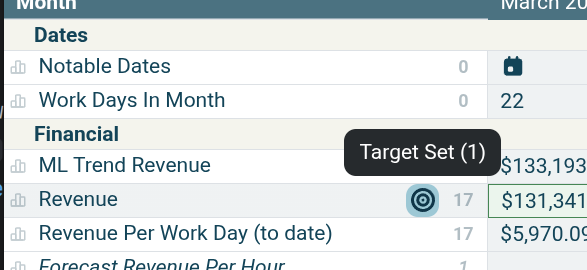
Also, if you have a breakdown (EG: 'By Location') that has target values entered then you will see a 'breakdown with targets' icon that will open the breakdown, and open the target breakdown for each of it's values.
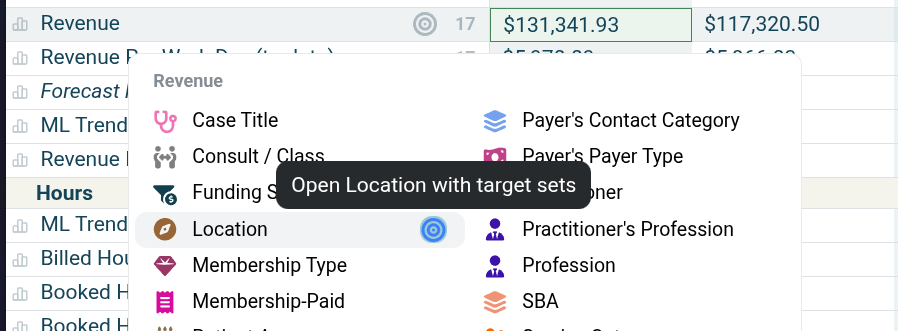
Target Views
A Target View allows you to choose Target Sets, criteria (EG: 'greater than' or 'less than') and a color. When you turn on the Target View then cells in mega report will be color coded appropriately.

For example, you could set up a view that does:
- Color cell green if it exceeds "Isaacs Targets"
- Color cell red if it's below "Bare minimum Targets"
This way any cells that are above bare minimum but not hitting targets will be black, while anything below bare minimum would be red.
Targets on Dashboards
Each dashboard can have a Target Set selected while you are editing. If you choose a Target Set here then anytime you open the dashboard it will auto-select that Target Set for the dashboard. Users can choose a different Target Set while looking at any dashboard.
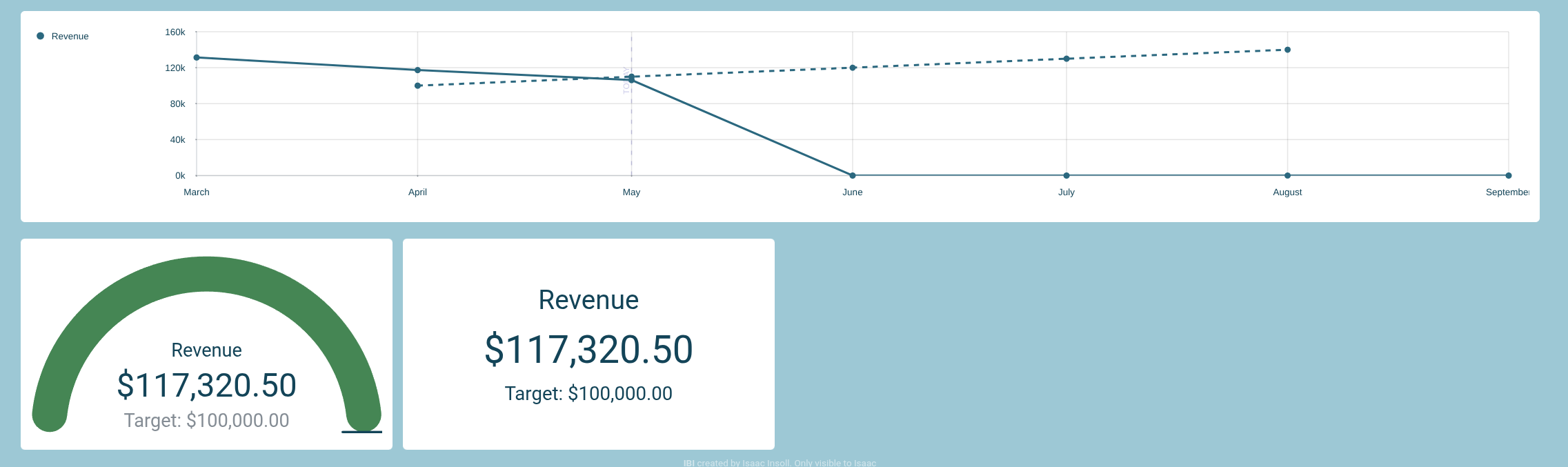
Each visualiser on the dashboard will present the actual data against the selected Target Set. For example the Time Series chart will show a dashed line of target values, while the gauge and number charts present the value underneath.